Help
Device guides
Apple
Watch Series 10

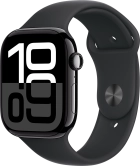
Apple Watch Series 10

f-97e65d25-4966-4b82-93b8-ef302d1dbb5a
f-1cadca11-b442-4f63-aea0-686ebb8e4200
f-7d564155-d586-44f5-86c6-5fb4e0454fcd
f-d82b6dd3-9776-4aca-b0c8-b4ac188f8bab
f-96b4d8b6-5304-4cf3-81aa-6f5584e939c3
f-0f7fbe03-d948-4e20-85a3-252f839e23bd
f-a698d9a8-64d7-4df2-b966-0e5c0d229fa0
  • Device home
  • Getting started
  • Basic functions
  • Calls, contacts, messaging
  • Connectivity
  • Specifications
  • Device home
  • Getting started
  • Basic functions
  • Calls, contacts, messaging
  • Connectivity
  • Specifications

Turning automatic screen activation on or off

You can set the screen on your Apple Watch to activate automatically when you lift your wrist with your Apple Watch.


Press the Digital Crown.
Step 1 of 5

Press the Digital Crown.

Press the settings icon.
Step 2 of 5

Press the settings icon.

Press Display & Brightness.
Step 3 of 5

Press Display & Brightness.

Press the indicator next to
Step 4 of 5

Press the indicator next to "Wake on Wrist Raise" to turn the function on or off.

Press the Digital Crown several times to return to standby mode.
Step 5 of 5

Press the Digital Crown several times to return to standby mode.

Get information on...

Or choose...

Show more