Help
Device guides
Apple
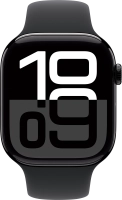
Watch Series 10

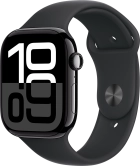
Apple Watch Series 10
f-97e65d25-4966-4b82-93b8-ef302d1dbb5a
f-1cadca11-b442-4f63-aea0-686ebb8e4200
f-7d564155-d586-44f5-86c6-5fb4e0454fcd
f-d82b6dd3-9776-4aca-b0c8-b4ac188f8bab
f-96b4d8b6-5304-4cf3-81aa-6f5584e939c3
f-0f7fbe03-d948-4e20-85a3-252f839e23bd
f-a698d9a8-64d7-4df2-b966-0e5c0d229fa0
  • Device home
  • Getting started
  • Basic functions
  • Calls, contacts, messaging
  • Connectivity
  • Specifications
  • Device home
  • Getting started
  • Basic functions
  • Calls, contacts, messaging
  • Connectivity
  • Specifications

Updating Apple Watch software

It's recommended that you update your Apple Watch with the newest software, as the manufacturer continuously corrects errors.

On your phone: Press Watch.
Step 1 of 4

On your phone: Press Watch.

On your phone: Press My Watch.
Step 2 of 4

On your phone: Press My Watch.

On your phone: Press General.
Step 3 of 4

On your phone: Press General.

On your phone: Press Software Update. If a new software version is available, it's displayed. Follow the instructions on the screen to update the Apple Watch software.
Step 4 of 4

On your phone: Press Software Update. If a new software version is available, it's displayed. Follow the instructions on the screen to update the Apple Watch software.

Get information on...

Or choose...

Show more