Help
Device guides
Apple
Watch Series 10

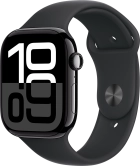
Apple Watch Series 10

f-97e65d25-4966-4b82-93b8-ef302d1dbb5a
f-1cadca11-b442-4f63-aea0-686ebb8e4200
f-7d564155-d586-44f5-86c6-5fb4e0454fcd
f-d82b6dd3-9776-4aca-b0c8-b4ac188f8bab
f-96b4d8b6-5304-4cf3-81aa-6f5584e939c3
f-0f7fbe03-d948-4e20-85a3-252f839e23bd
f-a698d9a8-64d7-4df2-b966-0e5c0d229fa0
  • Device home
  • Getting started
  • Basic functions
  • Calls, contacts, messaging
  • Connectivity
  • Specifications
  • Device home
  • Getting started
  • Basic functions
  • Calls, contacts, messaging
  • Connectivity
  • Specifications

Turning mobile data on or off

You can limit your data usage by turning off mobile data. You'll then not be able to access the internet using the mobile network. You can still use Wi-Fi even though mobile data is turned off.


Press the Side button.
Step 1 of 3

Press the Side button.
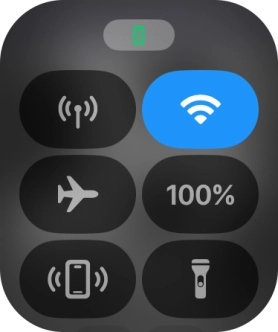
Press the mobile data icon to turn the function on or off.
Step 2 of 3

Press the mobile data icon to turn the function on or off.

Press the Digital Crown to return to the home screen.
Step 3 of 3

Press the Digital Crown to return to the home screen.

Get information on...

Or choose...

Show more