Help
Device guides
Apple
Watch Series 10

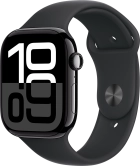
Apple Watch Series 10

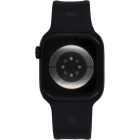
f-97e65d25-4966-4b82-93b8-ef302d1dbb5a
f-1cadca11-b442-4f63-aea0-686ebb8e4200
f-7d564155-d586-44f5-86c6-5fb4e0454fcd
f-d82b6dd3-9776-4aca-b0c8-b4ac188f8bab
f-96b4d8b6-5304-4cf3-81aa-6f5584e939c3
f-0f7fbe03-d948-4e20-85a3-252f839e23bd
f-a698d9a8-64d7-4df2-b966-0e5c0d229fa0
  • Device home
  • Getting started
  • Basic functions
  • Calls, contacts, messaging
  • Connectivity
  • Specifications
  • Device home
  • Getting started
  • Basic functions
  • Calls, contacts, messaging
  • Connectivity
  • Specifications

Activating your Apple Watch

You need to activate your Apple Watch before using it for the first time and after a factory reset.

Place your Apple Watch next to your phone.
Step 1 of 26

Place your Apple Watch next to your phone.

Make sure Bluetooth is turned on on your phone.
On your phone: Press Continue and follow the instructions on your phone to place the watch face in the middle of your phone's camera viewfinder.
Step 2 of 26

On your phone: Press Continue and follow the instructions on your phone to place the watch face in the middle of your phone's camera viewfinder.

On your phone: When this screen is displayed, your Apple Watch is connected to your phone.
Step 3 of 26

On your phone: When this screen is displayed, your Apple Watch is connected to your phone.

On your phone: Press Set Up for Myself.
Step 4 of 26

On your phone: Press Set Up for Myself.

On your phone: Press Set Up as New Apple Watch.
Step 5 of 26

On your phone: Press Set Up as New Apple Watch.

If you've backed up content previously, you can restore the content.
On your phone: Press the required setting and select on which wrist you want to wear the watch.
Step 6 of 26

On your phone: Press the required setting and select on which wrist you want to wear the watch.

On your phone: Press Continue.
Step 7 of 26

On your phone: Press Continue.

On your phone: Press Agree.
Step 8 of 26

On your phone: Press Agree.

On your phone: Press Enter Password.
Step 9 of 26

On your phone: Press Enter Password.

On your phone: Key in the password for your Apple ID and press Sign In.
Step 10 of 26

On your phone: Key in the password for your Apple ID and press Sign In.

On your phone: Press the required setting.
Step 11 of 26

On your phone: Press the required setting.

On your phone: Follow the instructions on the screen to turn on use of phone lock code or press Don't Add Passcode.
Step 12 of 26

On your phone: Follow the instructions on the screen to turn on use of phone lock code or press Don't Add Passcode.

On your phone: Press Don't Use Passcode.
Step 13 of 26

On your phone: Press Don't Use Passcode.

On your phone: Follow the instructions on the screen to select the required settings and press Continue.
Step 14 of 26

On your phone: Follow the instructions on the screen to select the required settings and press Continue.

Press OK.
Press OK.
Step 15 of 26

Press OK.

On your phone: Follow the instructions on the screen to select the required settings and press Continue.
Step 16 of 26

On your phone: Follow the instructions on the screen to select the required settings and press Continue.

On your phone: Follow the instructions on the screen to select the required activity settings or press Skip This Step.
Step 17 of 26

On your phone: Follow the instructions on the screen to select the required activity settings or press Skip This Step.

On your phone: Follow the instructions on the screen to select sleep settings or press Skip.
Step 18 of 26

On your phone: Follow the instructions on the screen to select sleep settings or press Skip.

On your phone: Press the indicators to turn the required settings on or off.
Step 19 of 26

On your phone: Press the indicators to turn the required settings on or off.

Press Continue.
Press Continue.
Step 20 of 26

Press Continue.

On your phone: Press Continue.
Step 21 of 26

On your phone: Press Continue.

On your phone: Follow the instructions on the screen to set up mobile data on your Apple Watch or press Not Now.
Step 22 of 26

On your phone: Follow the instructions on the screen to set up mobile data on your Apple Watch or press Not Now.

See how to set up mobile data later after activation.
On your phone: Press Continue.
Step 23 of 26

On your phone: Press Continue.

On your phone: Press the required setting.
Step 24 of 26

On your phone: Press the required setting.

On your phone: Press Continue.
Step 25 of 26

On your phone: Press Continue.

On your phone: Wait a moment while the activation of your Apple Watch is completed and press Done.
Step 26 of 26

On your phone: Wait a moment while the activation of your Apple Watch is completed and press Done.

Get information on...

Or choose...

Show more