Help
Device guides
Apple
Watch Series 10

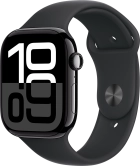
Apple Watch Series 10
f-97e65d25-4966-4b82-93b8-ef302d1dbb5a
f-1cadca11-b442-4f63-aea0-686ebb8e4200
f-7d564155-d586-44f5-86c6-5fb4e0454fcd
f-d82b6dd3-9776-4aca-b0c8-b4ac188f8bab
f-96b4d8b6-5304-4cf3-81aa-6f5584e939c3
f-0f7fbe03-d948-4e20-85a3-252f839e23bd
f-a698d9a8-64d7-4df2-b966-0e5c0d229fa0
  • Device home
  • Getting started
  • Basic functions
  • Calls, contacts, messaging
  • Connectivity
  • Specifications
  • Device home
  • Getting started
  • Basic functions
  • Calls, contacts, messaging
  • Connectivity
  • Specifications

Ending running applications

Some applications aren't ended completely when you return to the home screen. If you don't end them from the list of running applications, they keep running in the background which may slow down your Apple Watch.


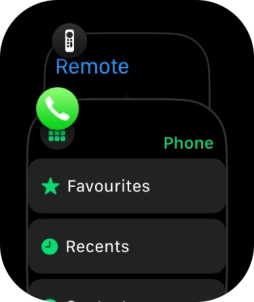
Press the Digital Crown twice to open the list of running applications.
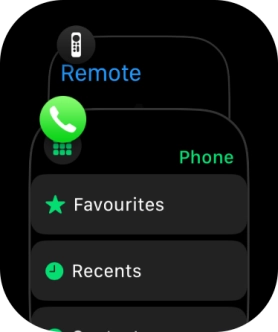
Step 1 of 4

Press the Digital Crown twice to open the list of running applications.

Slide your finger left on the required application.
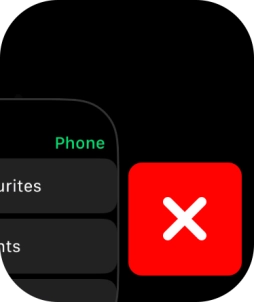
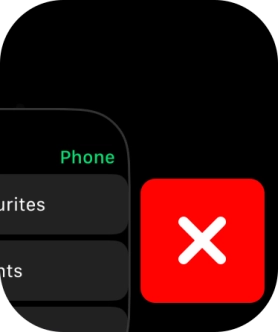
Step 2 of 4

Slide your finger left on the required application.

Press the close icon.
Step 3 of 4

Press the close icon.

Press the Digital Crown to return to the home screen.
Step 4 of 4

Press the Digital Crown to return to the home screen.

Get information on...

Or choose...

Show more