Help
Device guides
Apple
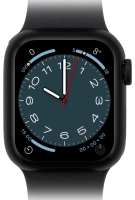
Watch Series 8

Apple Watch Series 8
f-416d6cd6-733a-4ff8-b848-009c669ac42f
f-a4d946bb-cd58-4520-8c82-4697ba68e7c9
f-01560a31-3dff-4568-be32-064770a0e8f8
f-2d4607ec-b95e-46b3-af0d-592bcec7d718
f-fec948dd-ae58-4f3a-aac0-550e5799983c
  • Device home
  • Getting started
  • Basic functions
  • Calls, contacts, messaging
  • Connectivity
  • Specifications
  • Device home
  • Getting started
  • Basic functions
  • Calls, contacts, messaging
  • Connectivity
  • Specifications

I can't activate my Apple Watch

Solution 3 of 3: The activation isn't done correctly

You need to activate your Apple Watch before using it for the first time and after a factory reset.

Place your Apple Watch next to your phone.
Step 1 of 22

Place your Apple Watch next to your phone.

On your phone: Press Continue and follow the instructions on your phone to place the watch face in the middle of your phone's camera viewfinder.
Step 2 of 22

On your phone: Press Continue and follow the instructions on your phone to place the watch face in the middle of your phone's camera viewfinder.

On your phone: When this screen is displayed, your Apple Watch is connected to your phone.
Step 3 of 22

On your phone: When this screen is displayed, your Apple Watch is connected to your phone.

On your phone: Press Set Up for Myself.
Step 4 of 22

On your phone: Press Set Up for Myself.

On your phone: Press Set Up as New Apple Watch.
Step 5 of 22

On your phone: Press Set Up as New Apple Watch.

On your phone: Press the required setting and select on which wrist you want to wear the watch.
Step 6 of 22

On your phone: Press the required setting and select on which wrist you want to wear the watch.

On your phone: Press Continue.
Step 7 of 22

On your phone: Press Continue.

On your phone: Press Agree.
Step 8 of 22

On your phone: Press Agree.

On your phone: Press Enter Password.
Step 9 of 22

On your phone: Press Enter Password.

On your phone: Key in the password for your Apple ID and press Sign In.
Step 10 of 22

On your phone: Key in the password for your Apple ID and press Sign In.

On your phone: Follow the instructions on the screen to turn on use of phone lock code or press Don't Add Passcode.
Step 11 of 22

On your phone: Follow the instructions on the screen to turn on use of phone lock code or press Don't Add Passcode.

On your phone: Press Don't Use Passcode.
Step 12 of 22

On your phone: Press Don't Use Passcode.

On your phone: Follow the instructions on the screen to select the required settings and press Continue.
Step 13 of 22

On your phone: Follow the instructions on the screen to select the required settings and press Continue.

On your phone: Follow the instructions on the screen to select the required settings and press Continue.
Step 14 of 22

On your phone: Follow the instructions on the screen to select the required settings and press Continue.

On your phone: Press OK.
Step 15 of 22

On your phone: Press OK.

On your phone: Follow the instructions on the screen to select the required settings and press Continue.
Step 16 of 22

On your phone: Follow the instructions on the screen to select the required settings and press Continue.

On your phone: Follow the instructions on the screen to turn the function on or off and press Continue.
Step 17 of 22

On your phone: Follow the instructions on the screen to turn the function on or off and press Continue.

On your phone: Press Continue.
Step 18 of 22

On your phone: Press Continue.

On your phone: Follow the instructions on the screen to set up mobile data on your Apple Watch or press Not Now.
Step 19 of 22

On your phone: Follow the instructions on the screen to set up mobile data on your Apple Watch or press Not Now.

On your phone: Press Continue.
Step 20 of 22

On your phone: Press Continue.

On your phone: Follow the instructions on the screen to select the required setting and press Continue.
Step 21 of 22

On your phone: Follow the instructions on the screen to select the required setting and press Continue.

On your phone: Wait a moment while the activation of your Apple Watch is completed and press OK.
Step 22 of 22

On your phone: Wait a moment while the activation of your Apple Watch is completed and press OK.


Did this solve your problem?

Yes No

Get information on...

Or choose...

Show more