Help
Device guides
Apple
Watch Series 9

Apple Watch Series 9
f-244f4df2-065b-4470-9cb8-c337b7e4cbad
f-ccd54f7e-454b-4fb8-8387-fdbea363ecf3
f-e298c507-88dc-4300-9c0d-da2d15f245df
f-ecbbb3dc-5355-4aff-aea8-fdb5a4082688
f-e78d5d02-f6d9-40e5-9b75-bbb8c8d5249a
  • Device home
  • Getting started
  • Basic functions
  • Calls, contacts, messaging
  • Connectivity
  • Specifications
  • Device home
  • Getting started
  • Basic functions
  • Calls, contacts, messaging
  • Connectivity
  • Specifications

I can't send and receive text messages

Solution 1 of 4: The text message isn't written correctly

See how to read a text message on your Apple Watch.
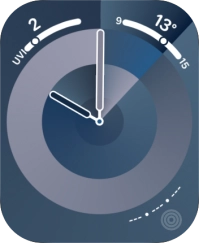
Press the Digital Crown.
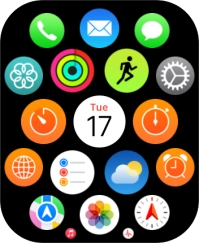
Step 1 of 10

Press the Digital Crown.

Press the message icon.
Step 2 of 10

Press the message icon.

Press the required text message.
Step 3 of 10

Press the required text message.

Press the required quick reply.
Step 4 of 10

Press the required quick reply.

Press SMS.
Press SMS.
Step 5 of 10

Press SMS.

Press the microphone icon and record the message.
Step 6 of 10

Press the microphone icon and record the message.

Press Send.
Press Send.
Step 7 of 10

Press Send.

Press SMS.
Press SMS.
Step 8 of 10

Press SMS.

Write the required text and press Send.
Step 9 of 10

Write the required text and press Send.

Press the Digital Crown twice to return to the home screen.
Step 10 of 10

Press the Digital Crown twice to return to the home screen.


Did this solve your problem?

Yes No

Get information on...

Or choose...

Show more