Help
Device guides
Apple
Watch Ultra

Apple Watch Ultra

f-d8722c0b-7ee7-4b76-97fb-275b78bd26d5
f-8c3adf3e-d67a-4903-93b8-7d1cfafd7101
f-fce89a86-ad63-4d84-ab34-6483eb956bce
f-1b7e92b7-deeb-44e5-b661-c7df36ae123e
f-7faf2779-ae61-4d39-afb9-0c31857bda9e
  • Device home
  • Getting started
  • Basic functions
  • Calls, contacts, messaging
  • Connectivity
  • Specifications
  • Device home
  • Getting started
  • Basic functions
  • Calls, contacts, messaging
  • Connectivity
  • Specifications

I can't use Wi-Fi

Solution 2 of 3: No connection to a Wi-Fi network is established

You can use Wi-Fi as an alternative to the mobile network when establishing an internet connection. This way your Apple Watch doesn't use mobile data.
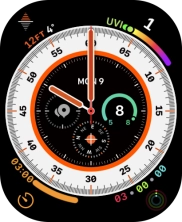
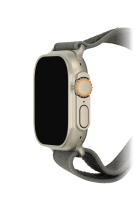
Press the Digital Crown.
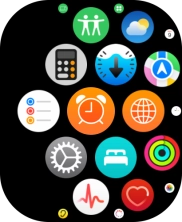
Step 1 of 7

Press the Digital Crown.

Press the settings icon.
Step 2 of 7

Press the settings icon.

Press Wi-Fi.
Press Wi-Fi.
Step 3 of 7

Press Wi-Fi.

Press the indicator next to
Step 4 of 7

Press the indicator next to "Wi-Fi" to turn on the function.

Press the required Wi-Fi network.
Step 5 of 7

Press the required Wi-Fi network.

Key in the password for the Wi-Fi network and press Join.
Step 6 of 7

Key in the password for the Wi-Fi network and press Join.

Press the Digital Crown to return to the home screen.
Step 7 of 7

Press the Digital Crown to return to the home screen.


Did this solve your problem?

Yes No

Get information on...

Or choose...

Show more