



Help
Device guides
Apple
iPad Air 11” (2026)

iPad Air 11” (2026)

f-70267b34-1f34-4ed1-ac0d-f347589180af
f-d8bd1116-7c1f-416d-8b8f-441db72da0a4
f-db2a39e9-45cc-4336-8d3a-fc36aa503d33
f-6a8ecc2f-9849-4790-b6b3-86c4c70e57f0
f-1fbe075f-0812-41cb-9b0e-4127bdc75945
f-cfd8638b-acb4-4594-ab96-b761d2d44342
  • Device home
  • Getting started
  • Basic functions
  • Contacts and messages
  • Connectivity
  • Specifications
  • Device home
  • Getting started
  • Basic functions
  • Contacts and messages
  • Connectivity
  • Specifications

Activating eSIM

In addition to your normal SIM, you can also use an eSIM in your tablet. An eSIM is a digital SIM that enables you to activate a price plan without the use of a physical SIM. To activate your eSIM, you need to set up your tablet for internet.
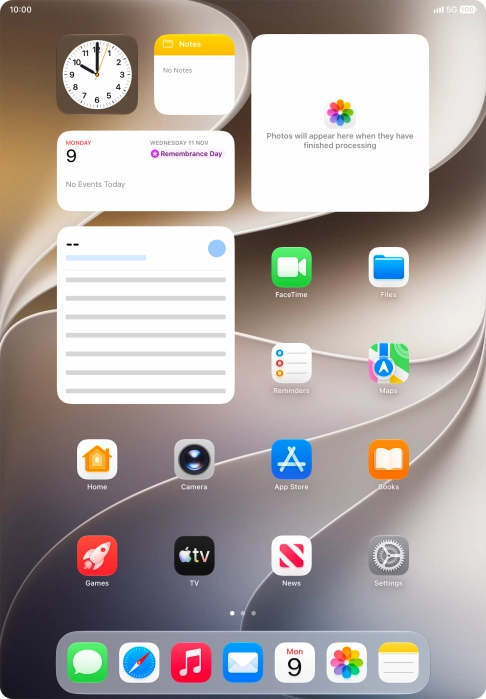
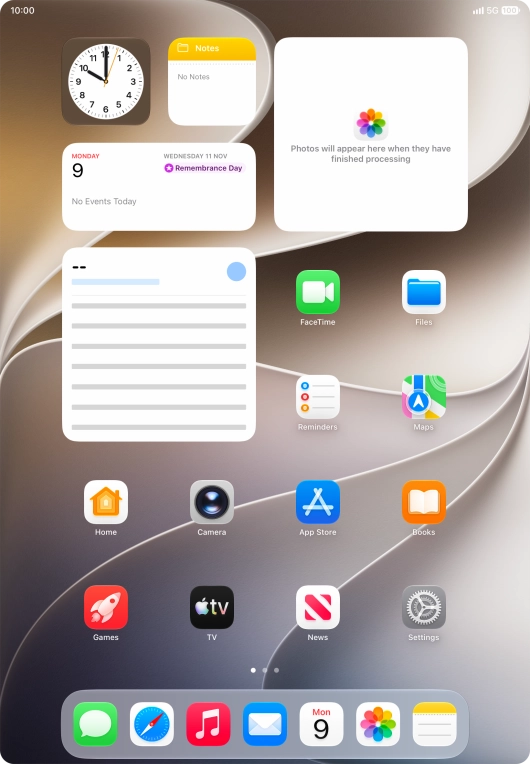
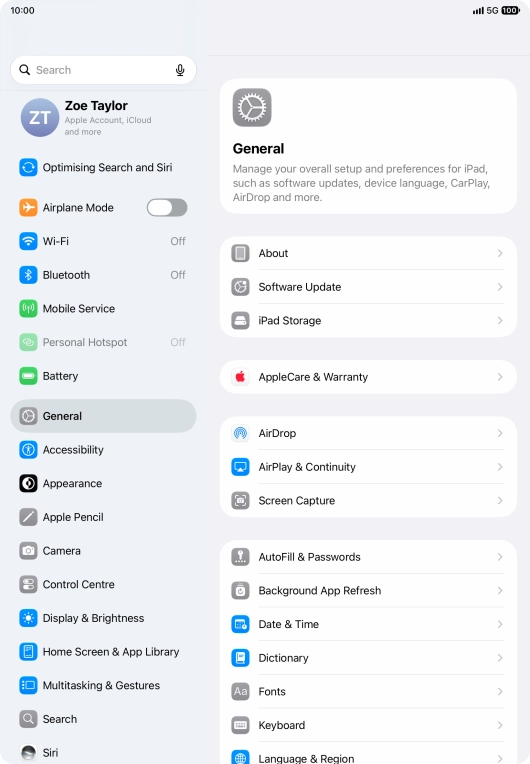
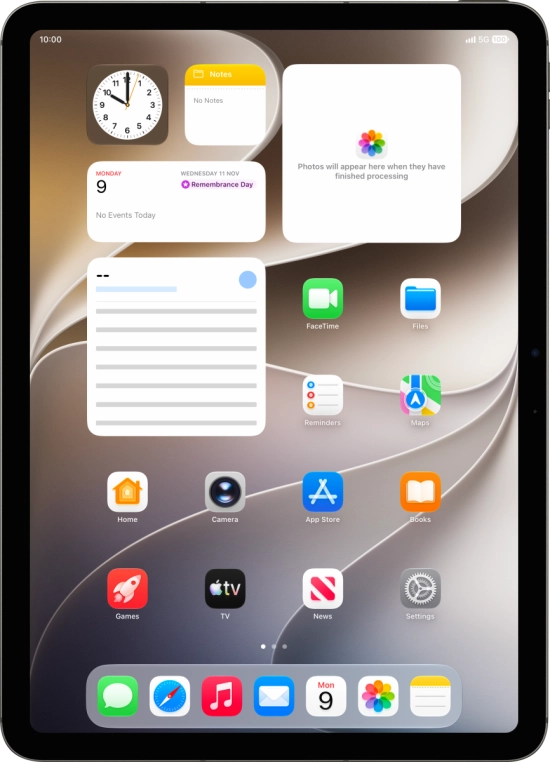
Press Settings.
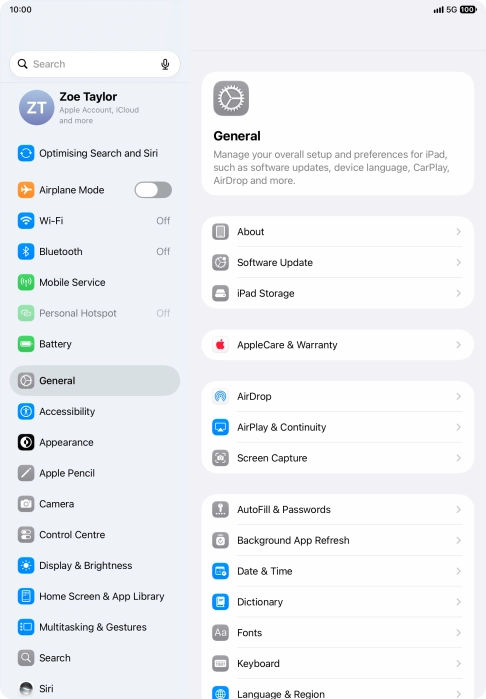
Press Settings.
Step 1 of 6

Press Settings.

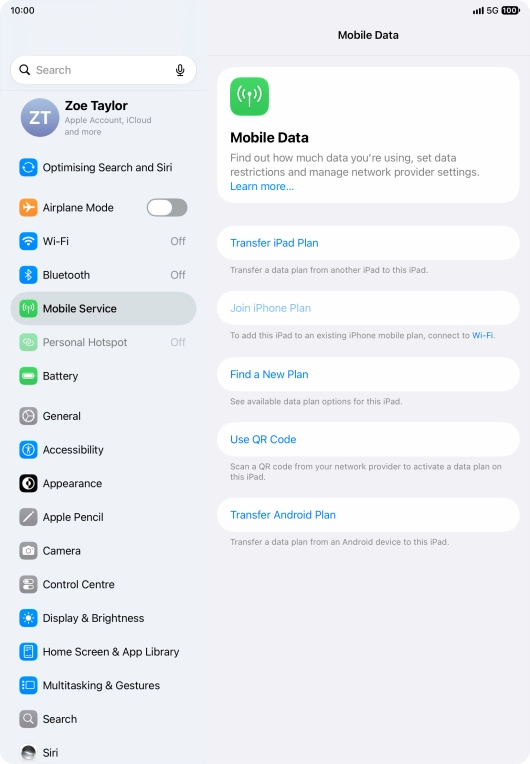
Press Mobile Service.
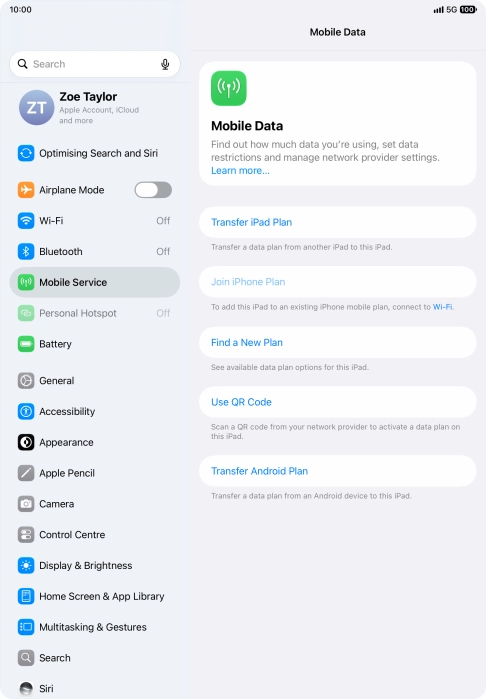
Step 2 of 6

Press Mobile Service.

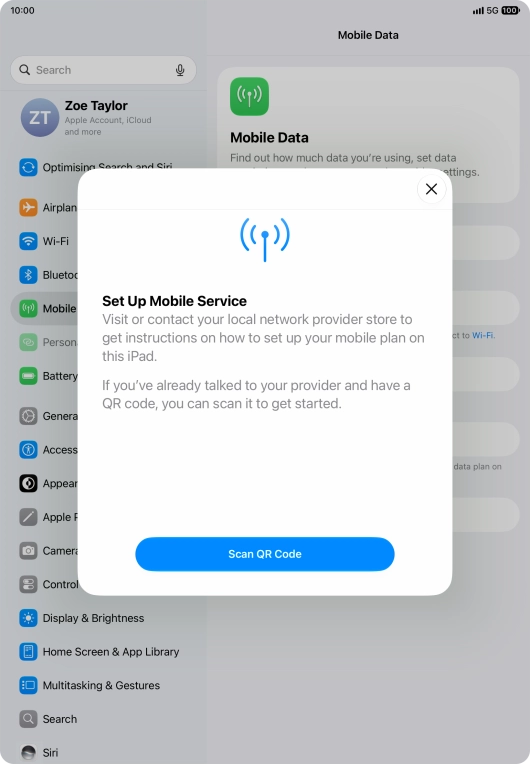
Press Use QR Code.
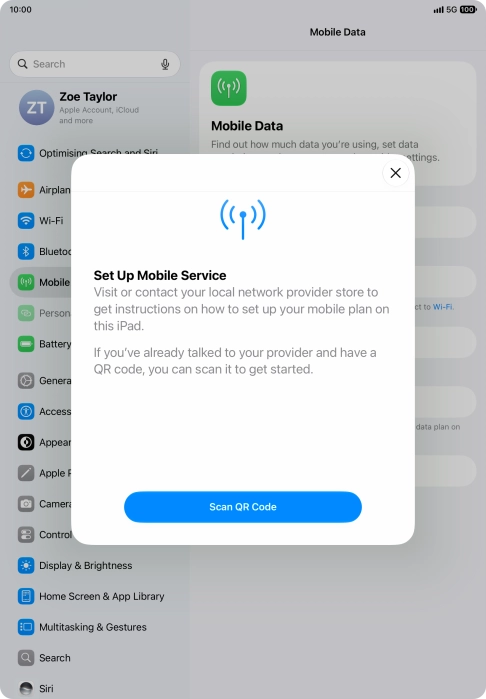
Press Use QR Code.
Step 3 of 6

Press Use QR Code.

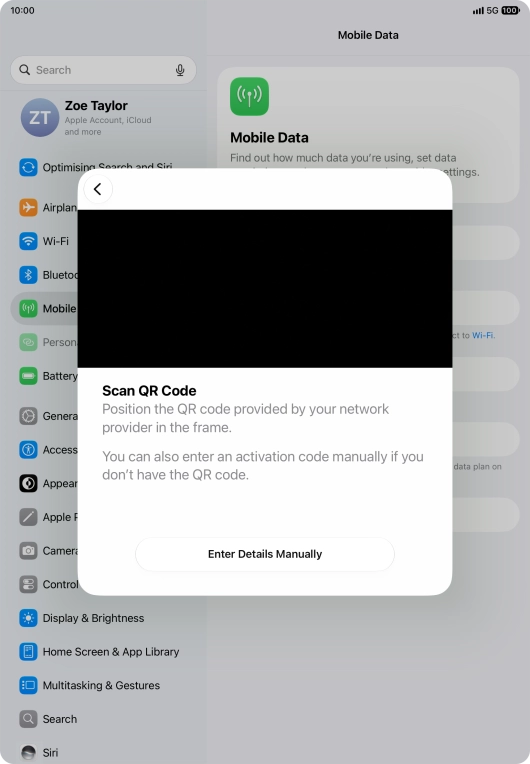
Press Scan QR Code.
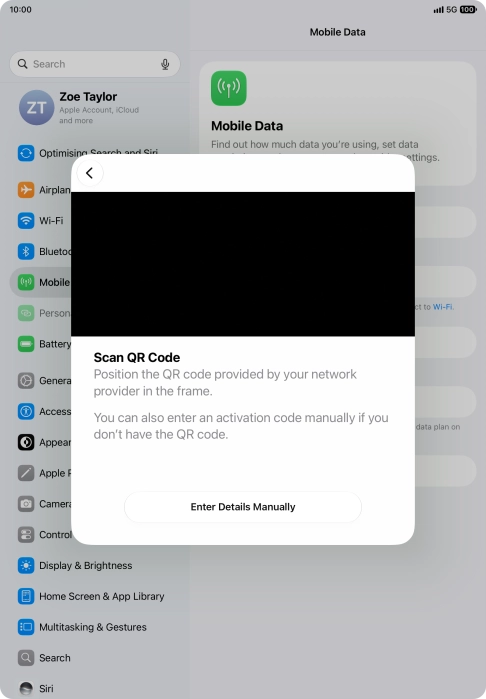
Press Scan QR Code.
Step 4 of 6

Press Scan QR Code.

Place the QR code you've received inside the tablet camera frame to scan the code.
Step 5 of 6

Place the QR code you've received inside the tablet camera frame to scan the code.

Apple iPad Air 11” (2026)
Step 6 of 6

Follow the instructions on the screen to finish the activation of your eSIM including keying in the activation code and setting up your eSIM as primary or secondary price plan.

Get information on...

Or choose...

Show more