
Help
Device guides
Apple
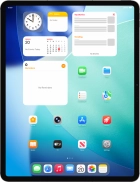
iPad Air 13" (2026)

iPad Air 13" (2026)

f-c54c2a15-2ce6-483f-8e16-ebea11b39594
f-c7645352-eb5f-4334-b47e-fe6e3ce04a73
f-166bc992-aafd-460b-b6da-add08b2cf668
f-fe5dc29e-c45d-4412-bf47-a3e7f00bf533
f-ae3b509d-dcf8-4340-9de7-1f4e293b3387
f-b51a8ec7-b5c0-47de-a056-cabfb761a92f
f-b35ff7d8-31c4-4ffe-adb7-3356a7a51feb
f-908cf568-25a5-47a8-8253-d0f20f718c19
  • Device home
  • Getting started
  • Basic functions
  • Contacts and messages
  • Connectivity
  • Specifications
  • Device home
  • Getting started
  • Basic functions
  • Contacts and messages
  • Connectivity
  • Specifications

Updating tablet software

It's recommended that you update your tablet with the newest software, as the manufacturer continuously corrects errors. It's a good idea to back up the memory first. Before you can update your tablet's software, you need to establish a connection to a Wi-Fi network.
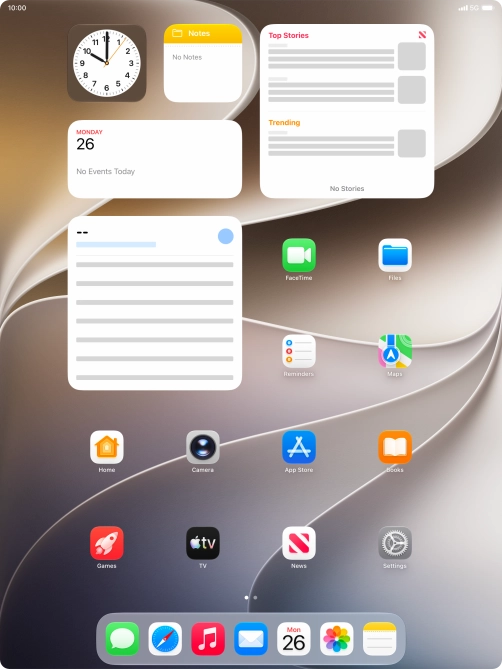
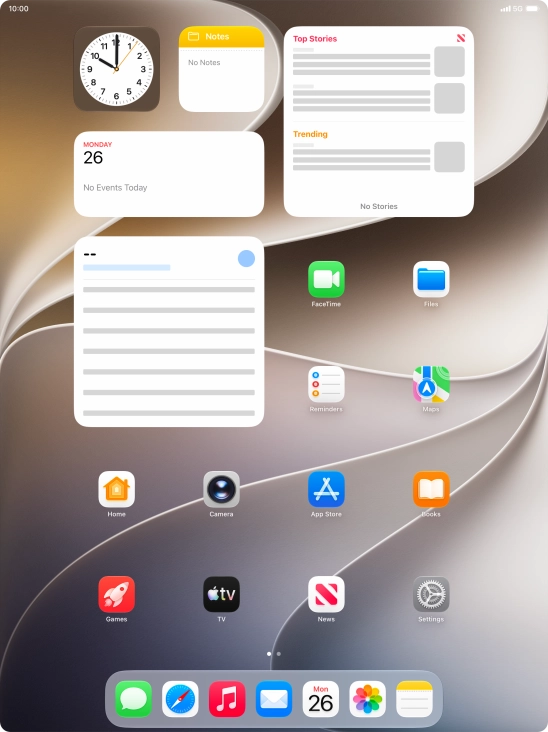
Press Settings.
Press Settings.
Step 1 of 3

Press Settings.

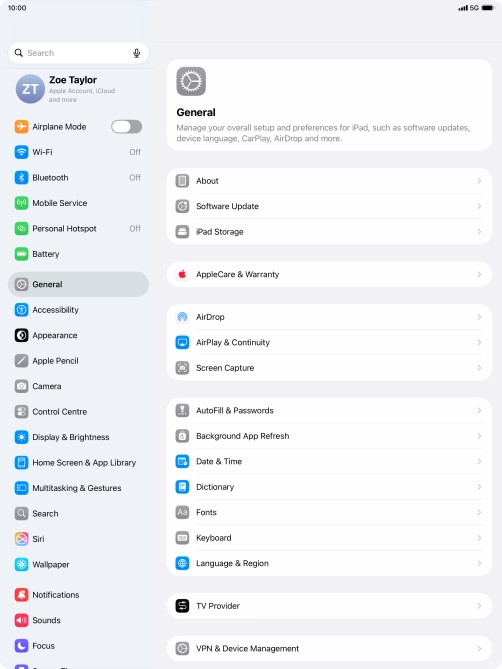
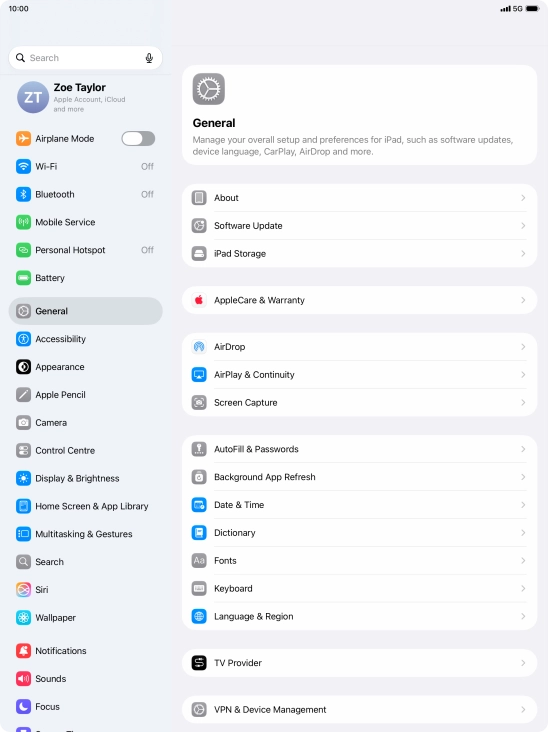
Press General.
Press General.
Step 2 of 3

Press General.

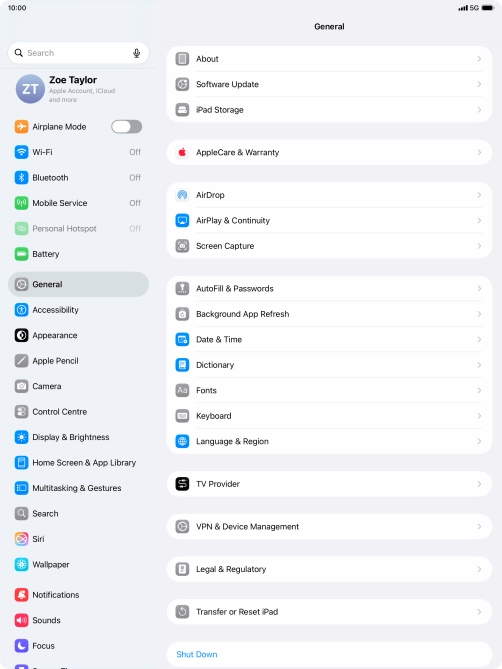
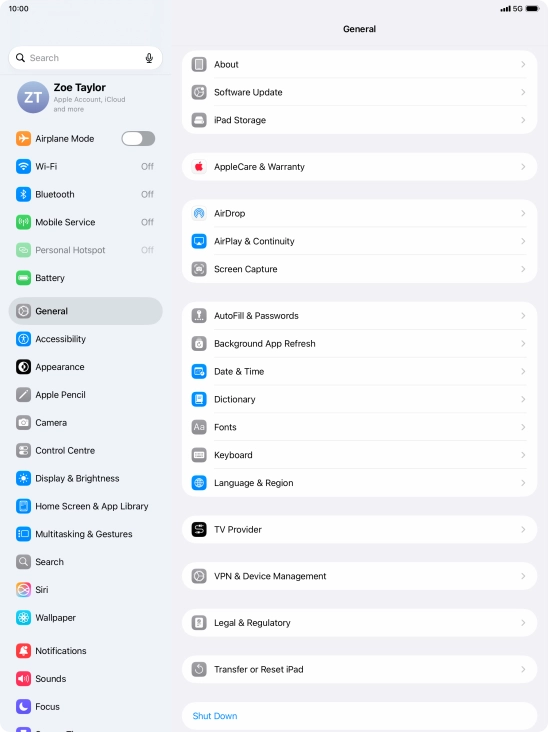
Press Software Update. If a new software version is available, it's displayed. Follow the instructions on the screen to update the tablet software.
Step 3 of 3

Press Software Update. If a new software version is available, it's displayed. Follow the instructions on the screen to update the tablet software.

Get information on...

Or choose...

Show more