



Help
Device guides
Apple
iPad Pro 13 (2025)

iPad Pro 13 (2025)

f-ec7fce1b-6e50-4e7c-833e-99b63ac266be
f-f21809a5-5068-49a0-8d1c-d0628b869ca0
f-ded4e2d9-3620-402e-8724-ca67991c86df
f-7b0f47dc-797c-4ac8-b416-fcaa9ded197b
f-58dc76d0-9a20-486c-91d6-0887b98bc349
f-1d08356e-03cd-4c6c-8e84-fbf70ede4647
  • Device home
  • Getting started
  • Basic functions
  • Contacts and messages
  • Connectivity
  • Specifications
  • Device home
  • Getting started
  • Basic functions
  • Contacts and messages
  • Connectivity
  • Specifications

Synchronising the contents of your tablet using iCloud

You can synchronise the contents of your tablet using iCloud enabling you to access the contents from different devices or restore them if you lose your tablet. To use iCloud, you need to activate your Apple Account.
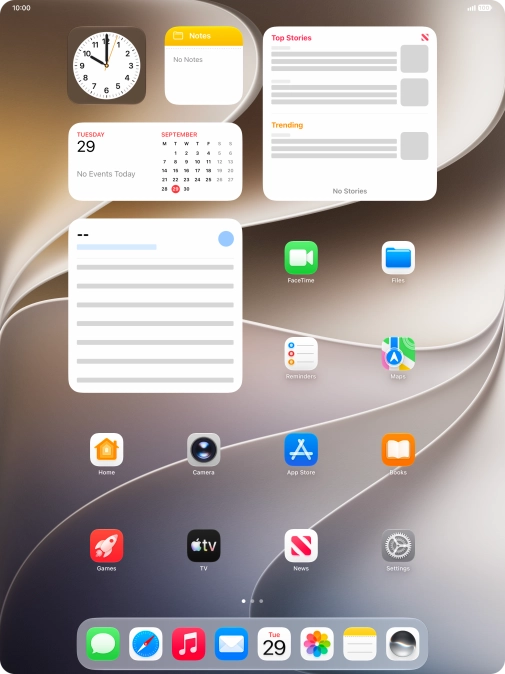
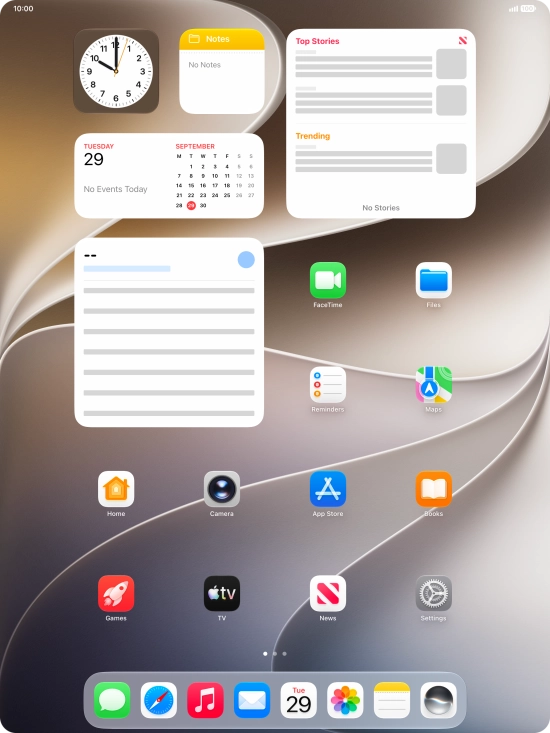
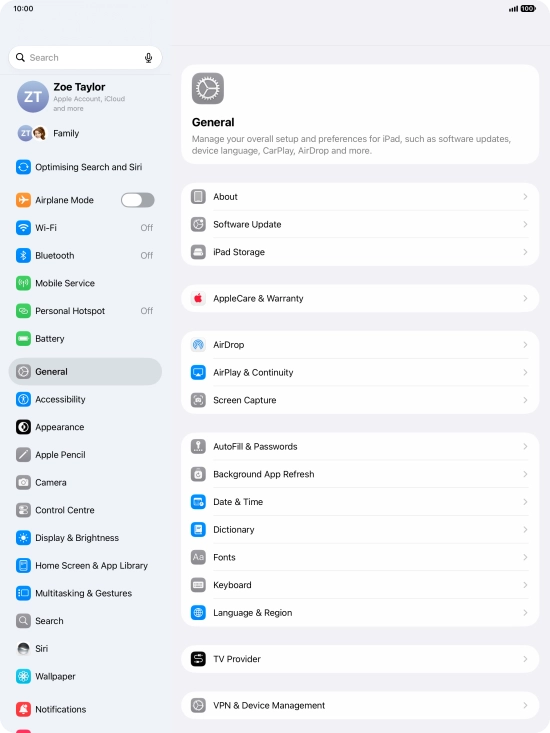
Press Settings.
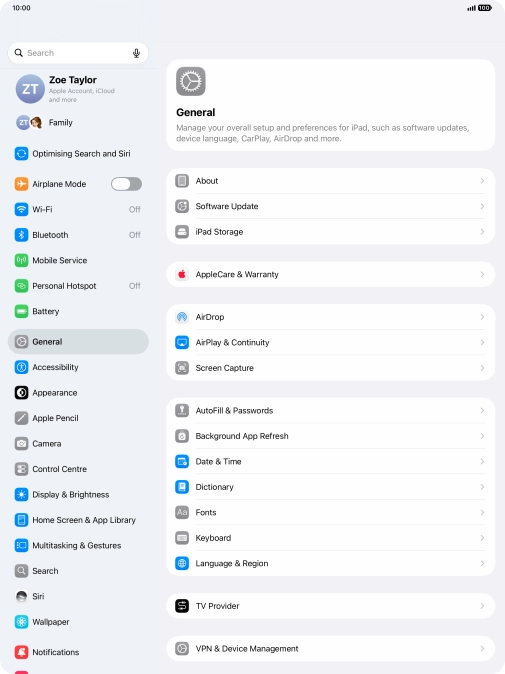
Press Settings.
Step 1 of 13

Press Settings.

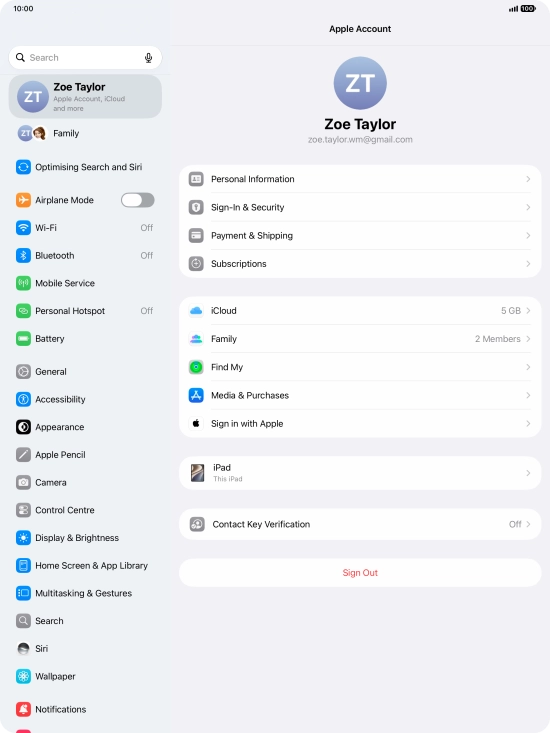
Press your Apple Account.
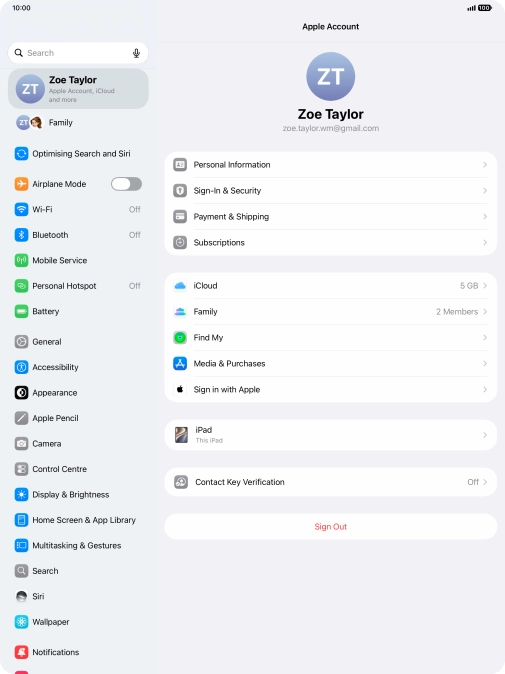
Step 2 of 13

Press your Apple Account.

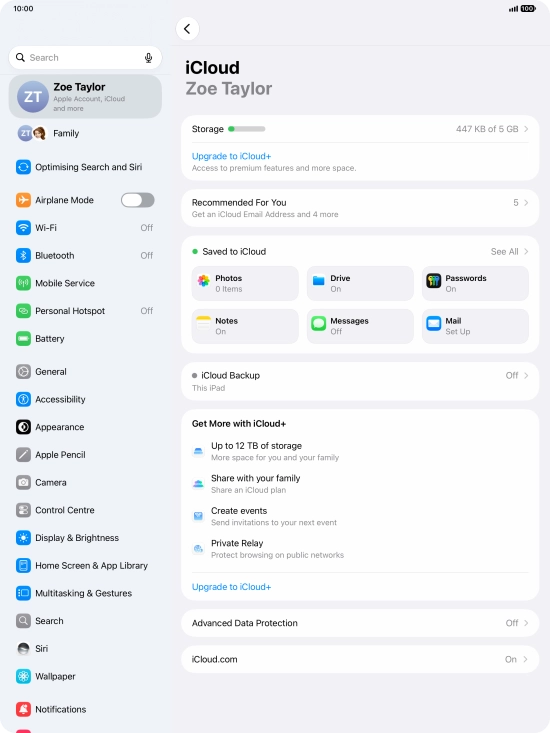
Press iCloud.
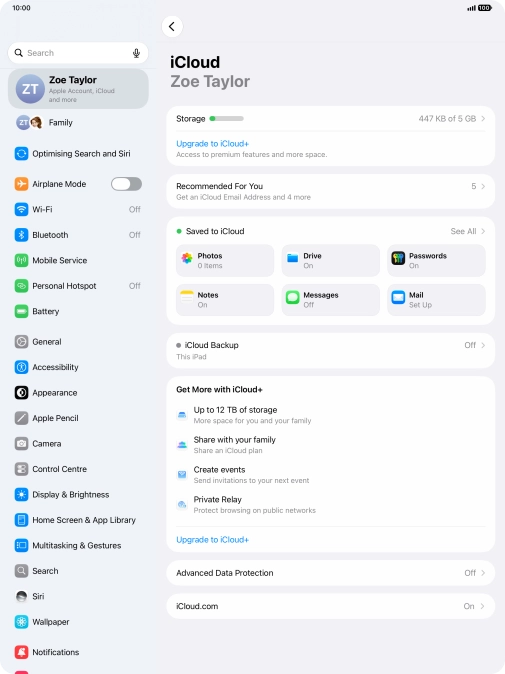
Press iCloud.
Step 3 of 13

Press iCloud.

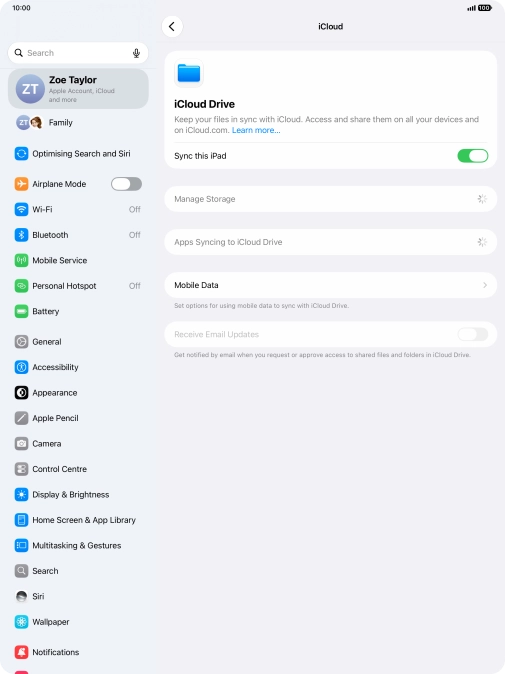
Press Drive.
Press Drive.
Step 4 of 13

Press Drive.

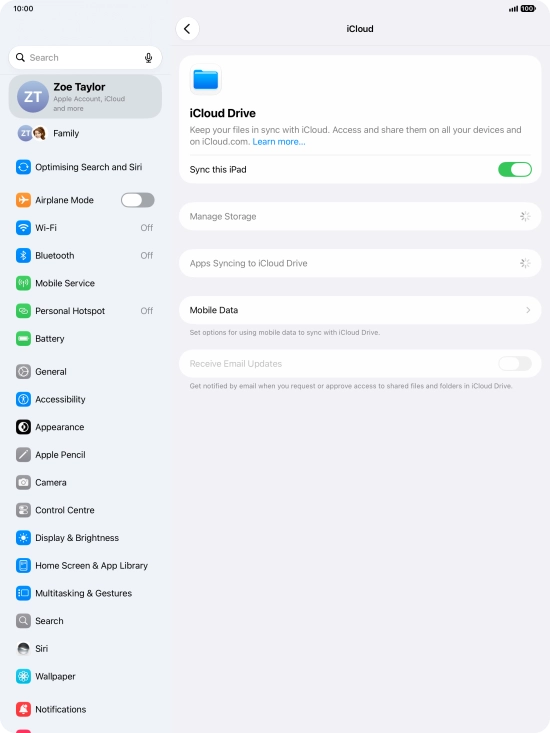
Press the indicator next to
Step 5 of 13

Press the indicator next to "Sync this iPad" to turn file synchronisation on or off.
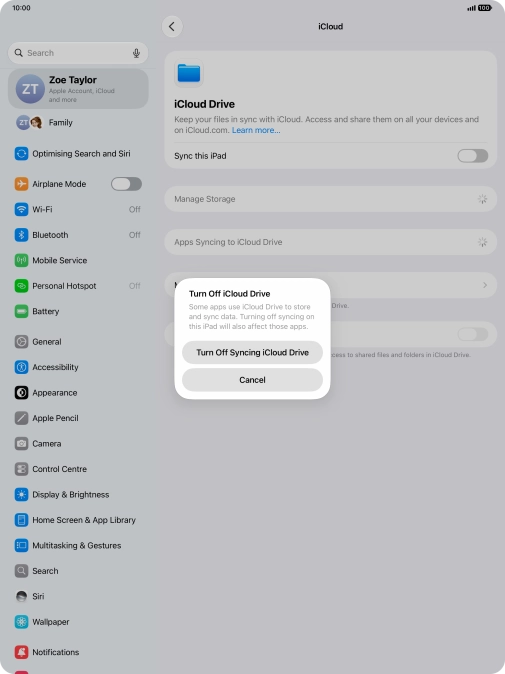
If you turn on file synchronisation, the files on your tablet, such as presentations, spreadsheets, PDF files and other kinds of documents will automatic be synchronised with other devices using Wi-Fi.
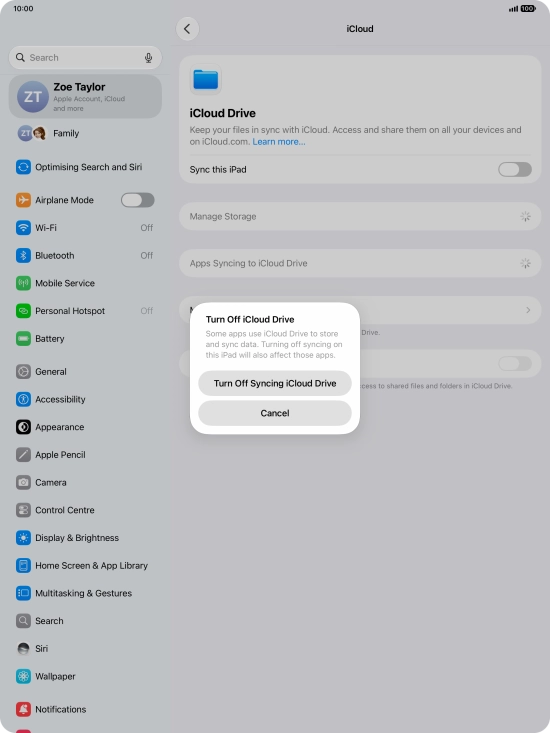
If you turn off the function, press Turn Off Syncing iCloud Drive.
Step 6 of 13

If you turn off the function, press Turn Off Syncing iCloud Drive.

Press arrow left.
Press arrow left.
Step 7 of 13

Press arrow left.

Press Photos.
Press Photos.
Step 8 of 13

Press Photos.

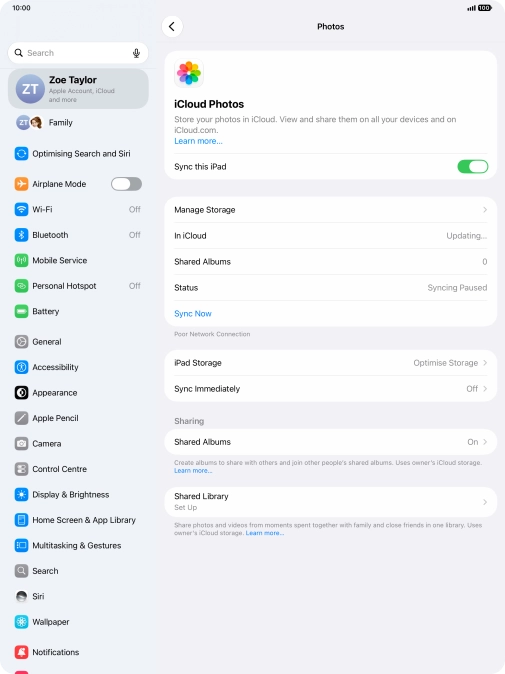
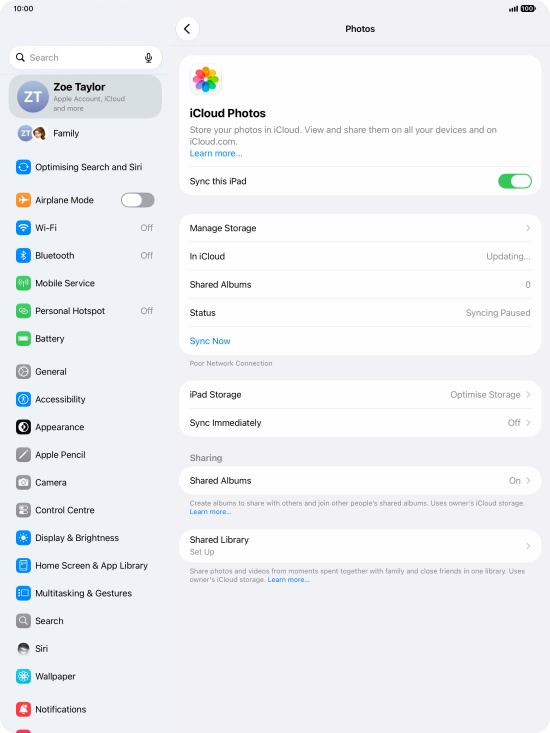
Press the indicator next to
Step 9 of 13

Press the indicator next to "Sync this iPad" to turn the function on or off.

If you turn on the function, all new pictures on your tablet are synchronised with other devices via iCloud.
Press arrow left.
Press arrow left.
Step 10 of 13

Press arrow left.

Press See All.
Press See All.
Step 11 of 13

Press See All.

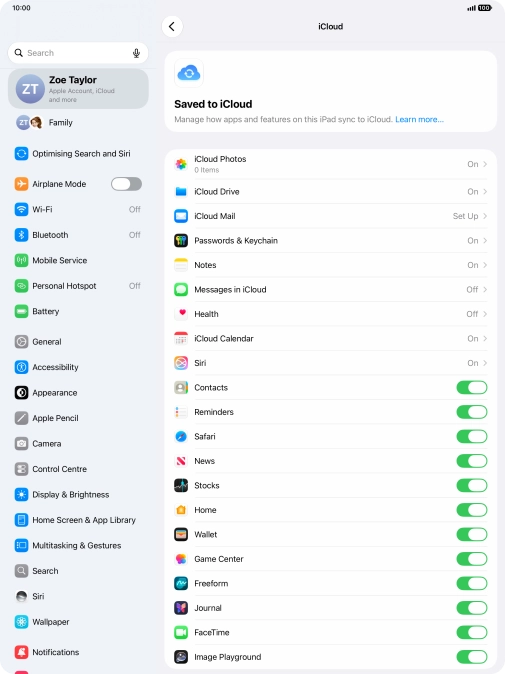
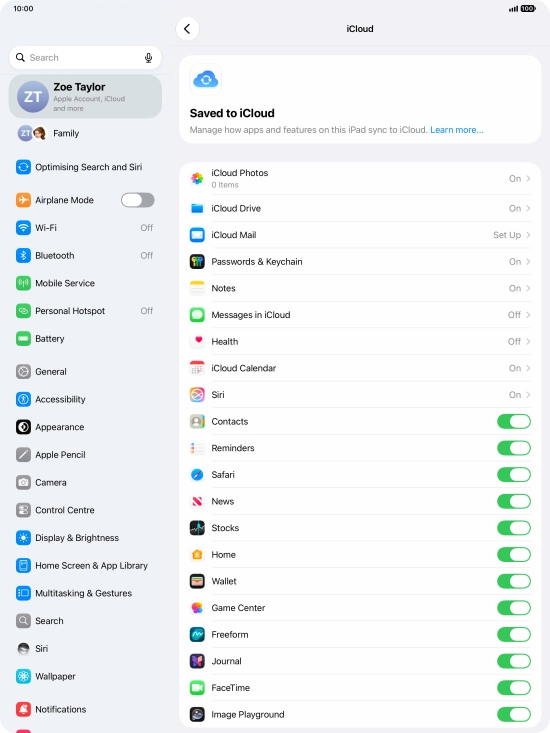
Press the indicators next to the required data types to turn synchronisation of each data type on or off.
Step 12 of 13

Press the indicators next to the required data types to turn synchronisation of each data type on or off.

Slide your finger upwards starting from the bottom of the screen to return to the home screen.
Step 13 of 13

Slide your finger upwards starting from the bottom of the screen to return to the home screen.

Get information on...

Or choose...

Show more