




Help
Device guides
Apple
iPad Pro 13 (2025)

iPad Pro 13 (2025)

f-ec7fce1b-6e50-4e7c-833e-99b63ac266be
f-f21809a5-5068-49a0-8d1c-d0628b869ca0
f-ded4e2d9-3620-402e-8724-ca67991c86df
f-7b0f47dc-797c-4ac8-b416-fcaa9ded197b
f-58dc76d0-9a20-486c-91d6-0887b98bc349
f-1d08356e-03cd-4c6c-8e84-fbf70ede4647
  • Device home
  • Getting started
  • Basic functions
  • Contacts and messages
  • Connectivity
  • Specifications
  • Device home
  • Getting started
  • Basic functions
  • Contacts and messages
  • Connectivity
  • Specifications

Taking screenshot

You can take a picture of your screen if you want to share something with your friends or save the picture for later use.
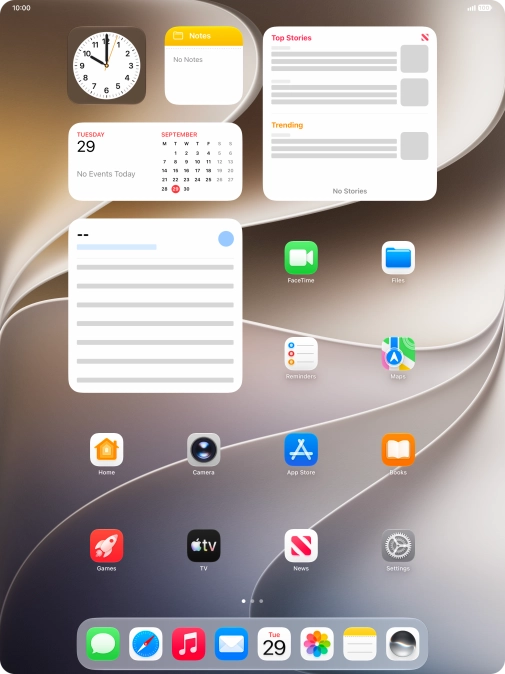
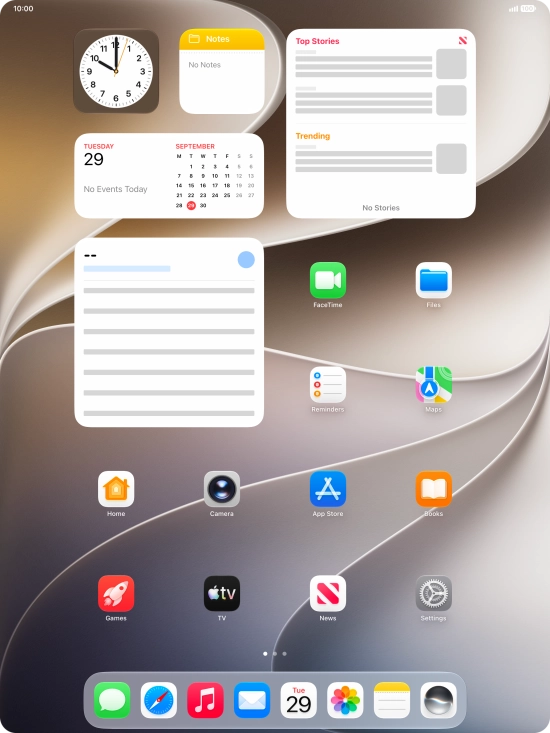
At the same time, press the Top key and the Top volume key to take a screenshot.
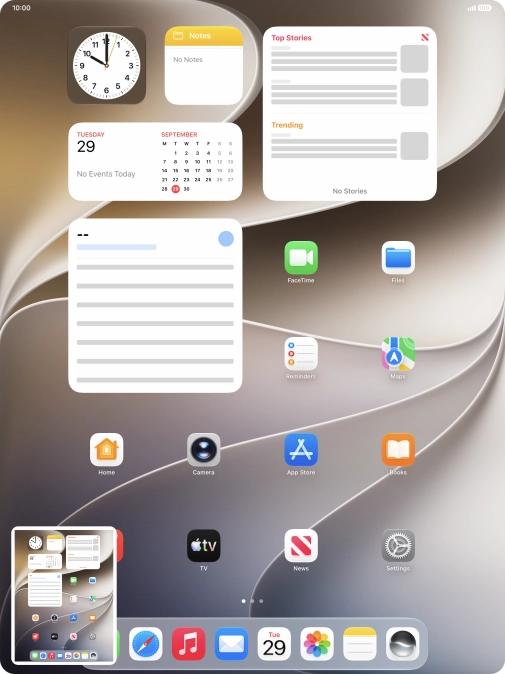
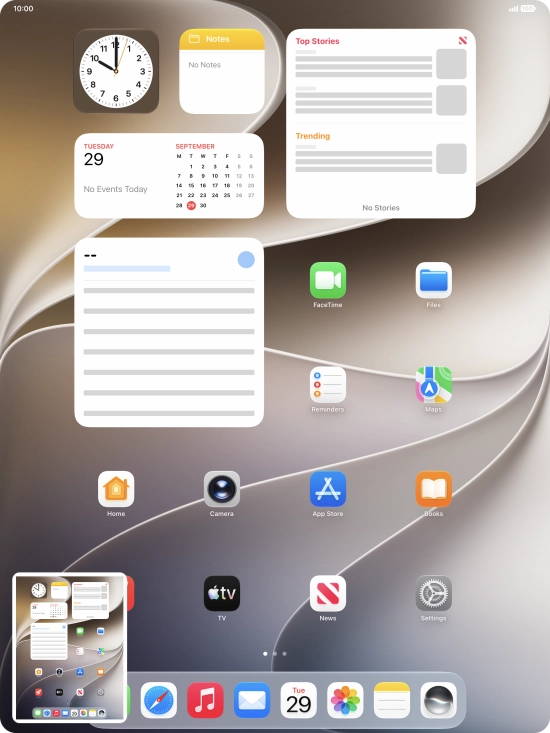
Step 1 of 2

At the same time, press the Top key and the Top volume key to take a screenshot.

Follow the instructions on the screen to edit and save your screenshot.
Step 2 of 2

Follow the instructions on the screen to edit and save your screenshot.

Get information on...

Or choose...

Show more