
Help
Device guides
Apple
iPhone Duo

iPhone Duo

f-7d421a93-ccff-45d2-be78-bf5fd60a0d8a
f-8c3fda19-43c6-4505-a1ac-8011cd5b31f6
f-f1dec2bb-f661-4e45-8aca-dadf88c6d073
f-9d6638b7-f65f-42ec-8fb4-7e87c1397718
f-6e073410-12a4-4b6b-a345-ed93ec9c358b
f-1e1a8456-948a-4380-84d7-f785826a37a9
f-e73a41ff-ec10-49b6-aca9-dde61822f7d9
f-ee82dc6e-c72e-41eb-9846-382dbab57477
  • Device home
  • Getting started
  • Basic functions
  • Calls, contacts, messaging
  • Connectivity
  • Specifications
  • Device home
  • Getting started
  • Basic functions
  • Calls, contacts, messaging
  • Connectivity
  • Specifications

Using widgets

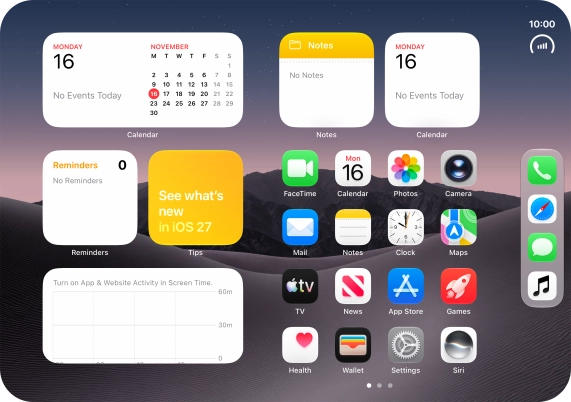
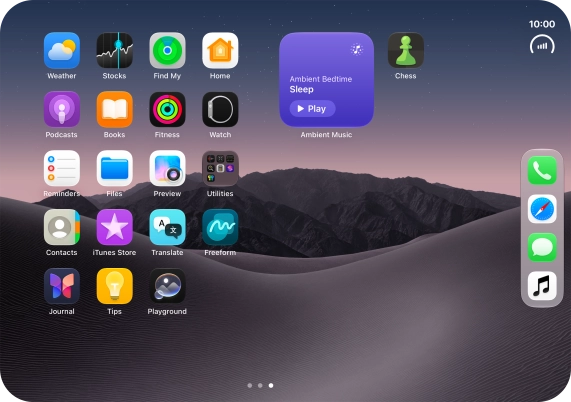
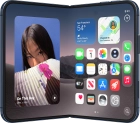
You can use widgets on your phone allowing you to get a quick overview of selected apps. You can choose between different widget sizes, organise widgets in stacks and place them on the home screen.
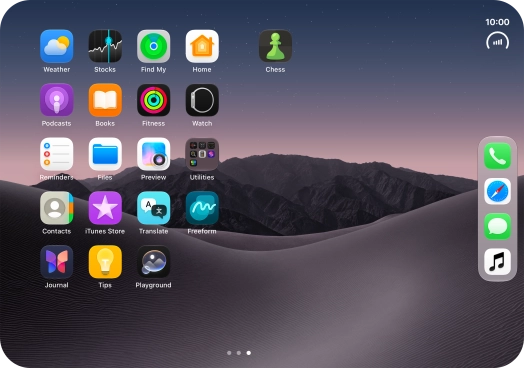
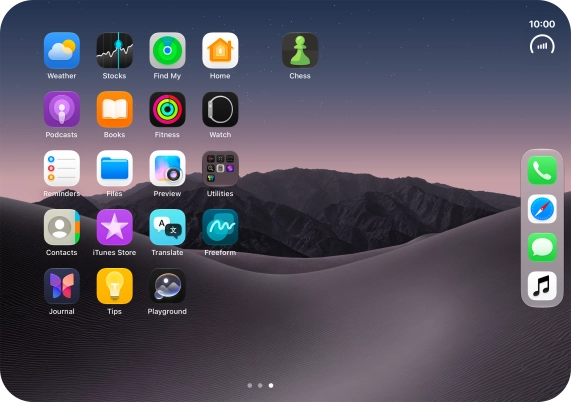
Press and hold anywhere on the screen.
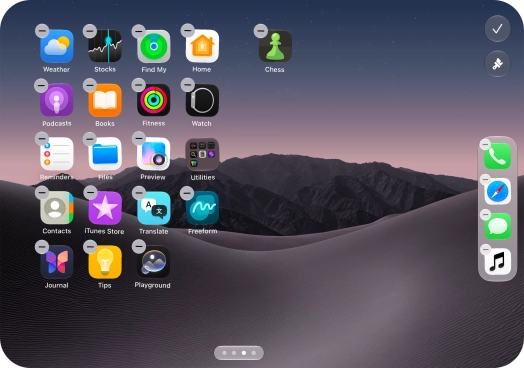
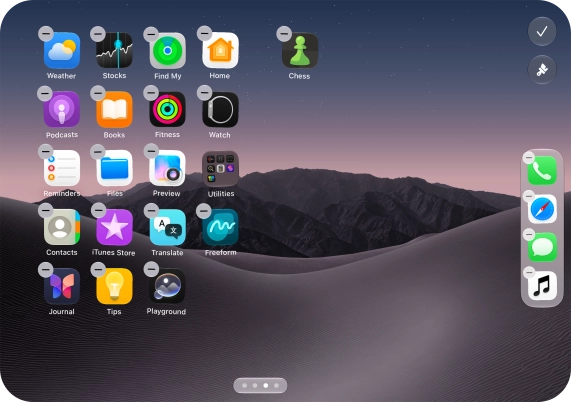
Step 1 of 31

Press and hold anywhere on the screen.

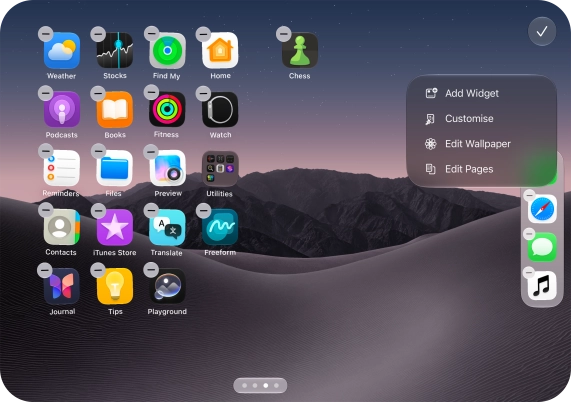
Press the edit icon.
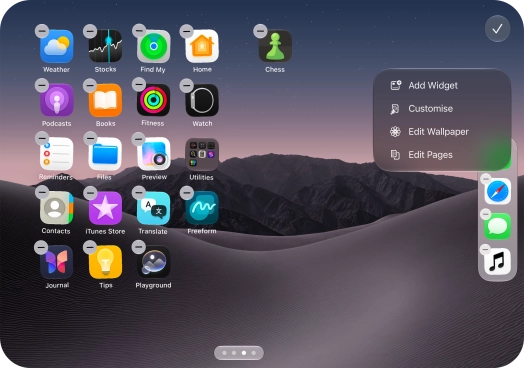
Step 2 of 31

Press the edit icon.

Press Add Widget.
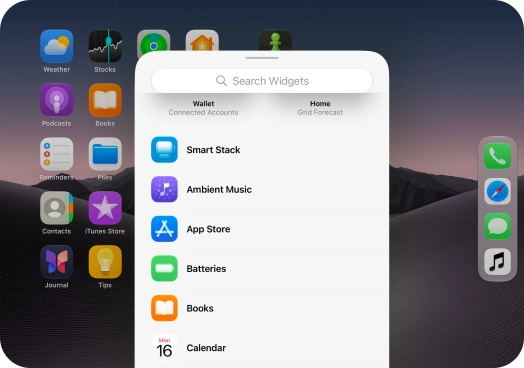
Press Add Widget.
Step 3 of 31

Press Add Widget.

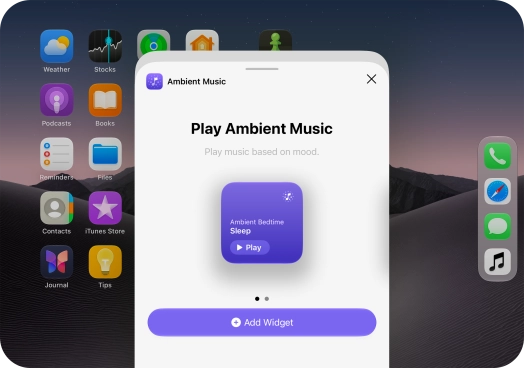
Press the required widget.
Step 4 of 31

Press the required widget.

If the required widget is not displayed on the list, press the search field and follow the instructions on the screen to find the required widget.
Step 5 of 31

If the required widget is not displayed on the list, press the search field and follow the instructions on the screen to find the required widget.

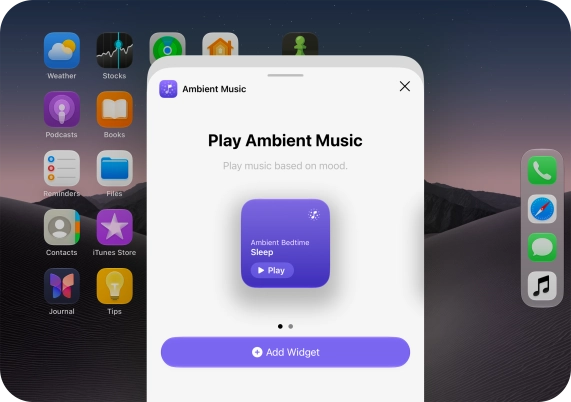
Slide your finger right or left on the screen to select the required widget size.
Step 6 of 31

Slide your finger right or left on the screen to select the required widget size.

Press Add Widget.
Press Add Widget.
Step 7 of 31

Press Add Widget.

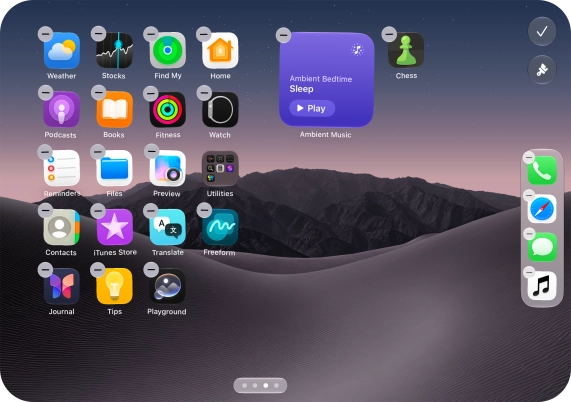
Press the confirm icon.
Step 8 of 31

Press the confirm icon.

Press and hold anywhere on the screen.
Step 9 of 31

Press and hold anywhere on the screen.

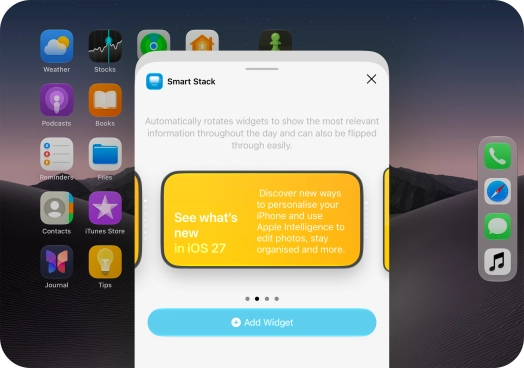
A Smart Stack is an automatically created selection of widgets.
Press the edit icon.
Step 10 of 31

Press the edit icon.

Press Add Widget.
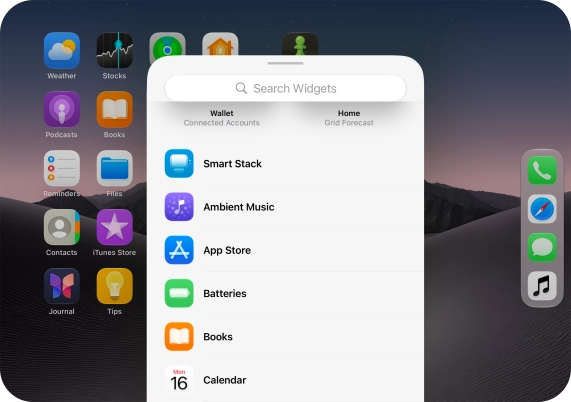
Press Add Widget.
Step 11 of 31

Press Add Widget.

Press Smart Stack.
Press Smart Stack.
Step 12 of 31

Press Smart Stack.

Slide your finger right or left on the screen to select the required widget size.
Step 13 of 31

Slide your finger right or left on the screen to select the required widget size.

Press Add Widget.
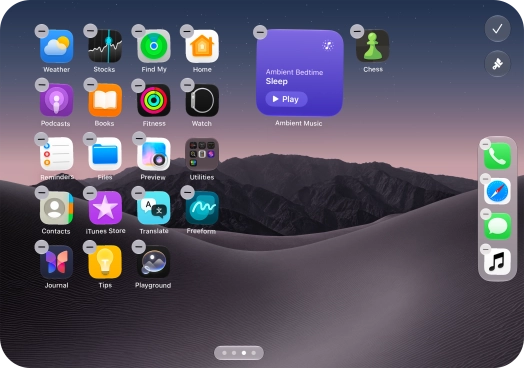
Press Add Widget.
Step 14 of 31

Press Add Widget.

Press the confirm icon.
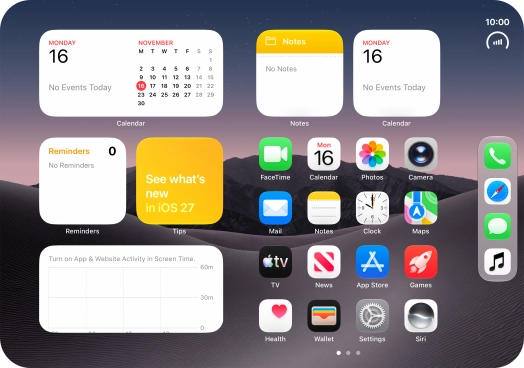
Step 15 of 31

Press the confirm icon.

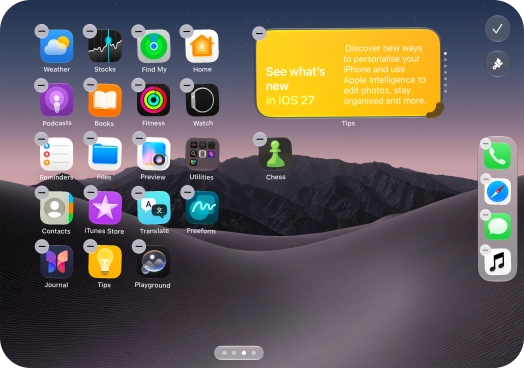
Press the required widget and drag it on top of another widget.
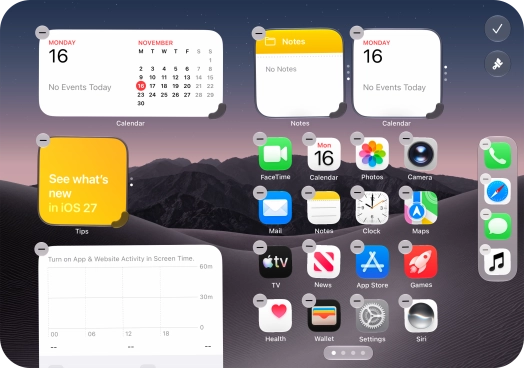
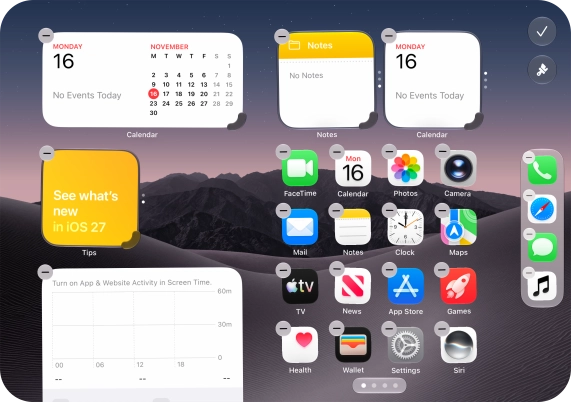
Step 16 of 31

Press the required widget and drag it on top of another widget.

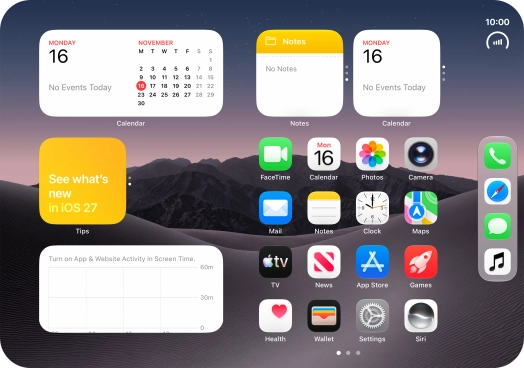
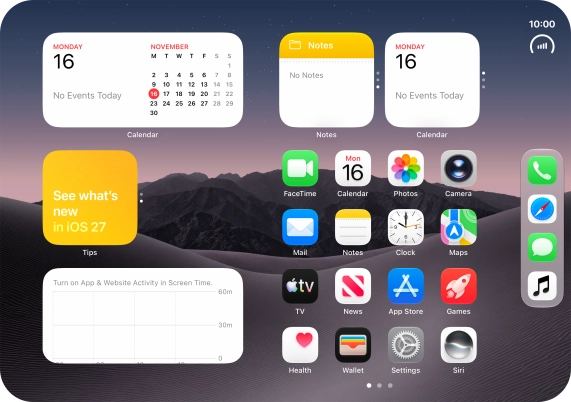
You can manually organise the required widgets in stacks. Please note that you can only create stacks containing widgets of the same size.
Press the confirm icon.
Step 17 of 31

Press the confirm icon.

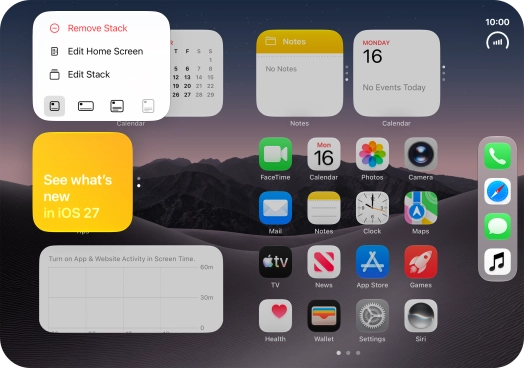
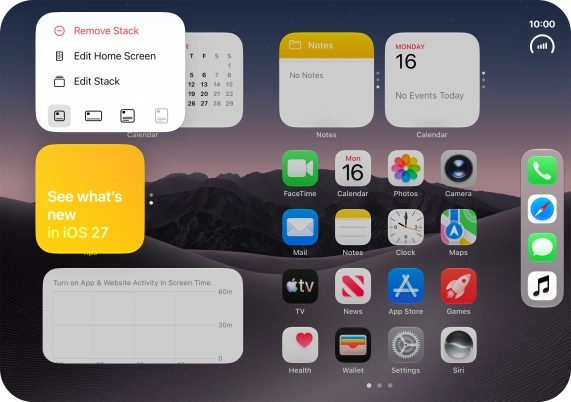
Press and hold the required Widget Stack.
Step 18 of 31

Press and hold the required Widget Stack.

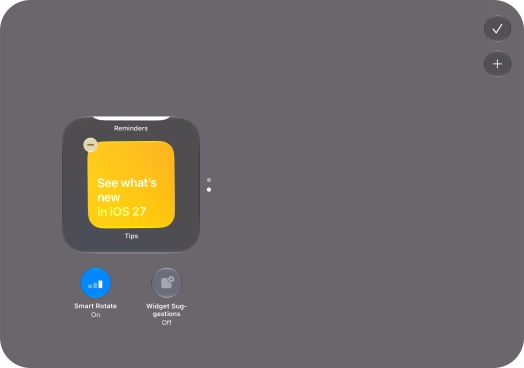
Press Edit Stack.
Press Edit Stack.
Step 19 of 31

Press Edit Stack.

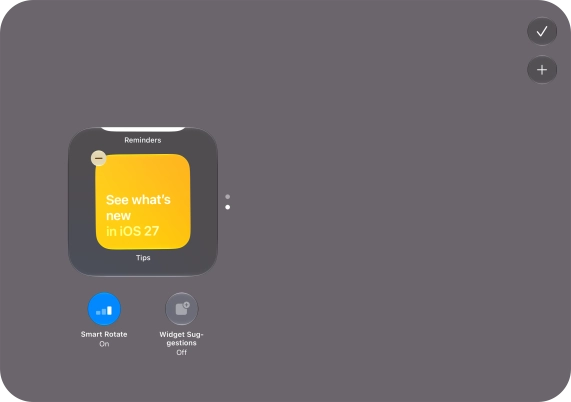
Press Smart Rotate to turn the function on or off.
Step 20 of 31

Press Smart Rotate to turn the function on or off.

Your phone can control which widgets to display based on factors such as time, GPS position or your activity.
Press and drag the required widget to the required location.
Step 21 of 31

Press and drag the required widget to the required location.

You can change the display order of widgets when using a Widget Stack.
Press the delete icon on the required widget to remove it from the stack.
Step 22 of 31

Press the delete icon on the required widget to remove it from the stack.

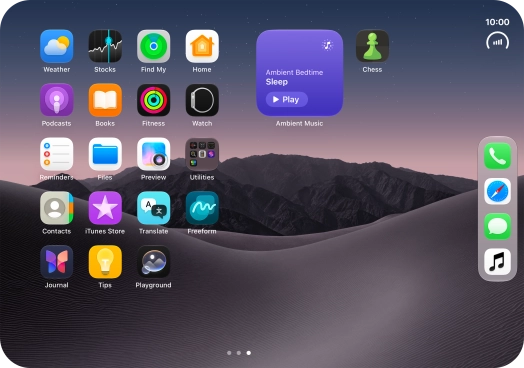
Press the confirm icon.
Step 23 of 31

Press the confirm icon.

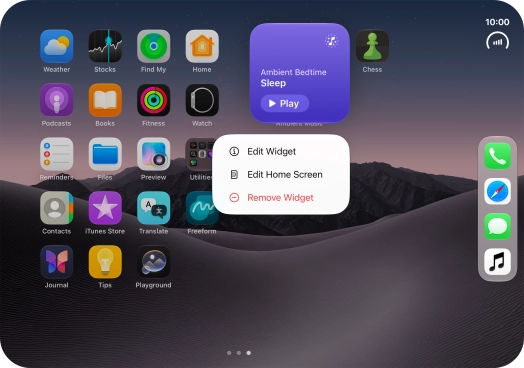
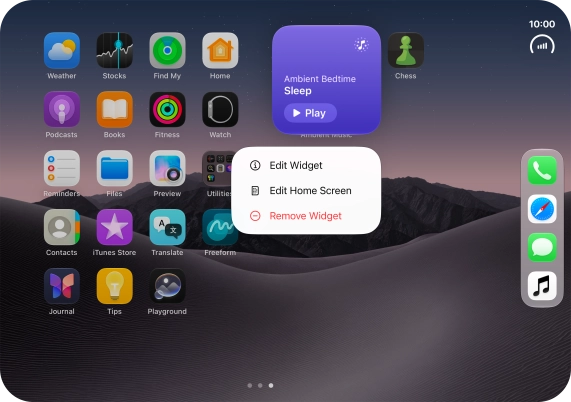
Press and hold the required widget until a pop-up menu is displayed.
Step 24 of 31

Press and hold the required widget until a pop-up menu is displayed.

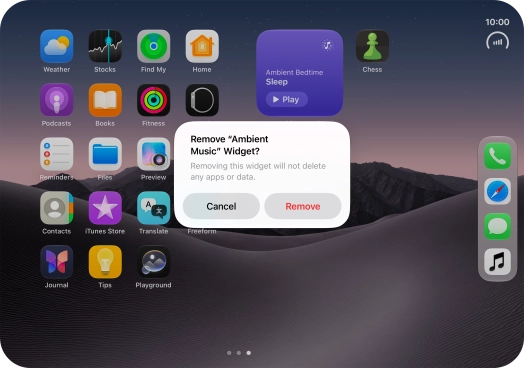
Press Remove Widget.
Step 25 of 31

Press Remove Widget.

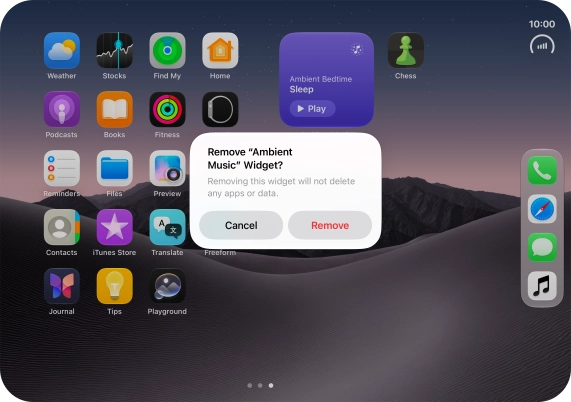
Press Remove.
Press Remove.
Step 26 of 31

Press Remove.

Press and hold the required widget. Drag the selected widget to the required position on the home screen.
Step 27 of 31

Press and hold the required widget. Drag the selected widget to the required position on the home screen.

Press the confirm icon.
Step 28 of 31

Press the confirm icon.

If you're using a Widget Stack: slide up or down on the stack to select the required widget.
Step 29 of 31

If you're using a Widget Stack: slide up or down on the stack to select the required widget.

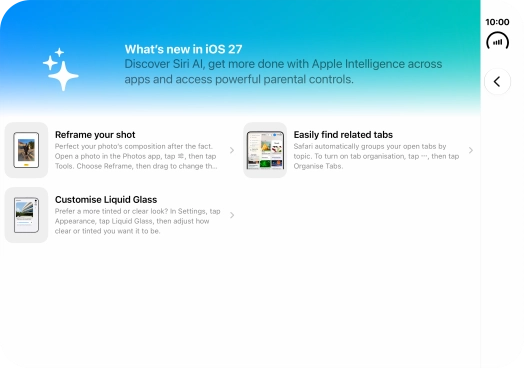
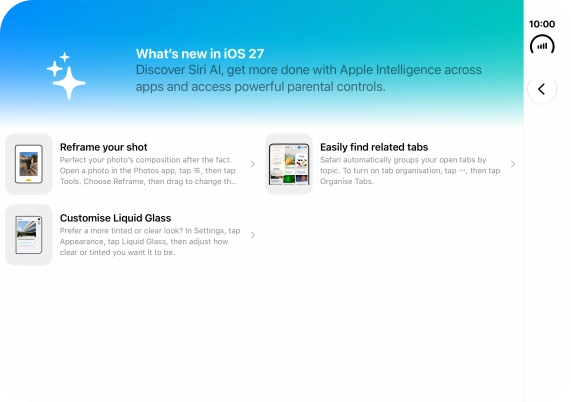
Press the required widget to open the app.
Step 30 of 31

Press the required widget to open the app.

Slide your finger upwards starting from the bottom of the screen to return to the home screen.
Step 31 of 31

Slide your finger upwards starting from the bottom of the screen to return to the home screen.

Get information on...

Or choose...

Show more