




Help
Device guides
Apple
iPhone Duo

iPhone Duo

f-7d421a93-ccff-45d2-be78-bf5fd60a0d8a
f-8c3fda19-43c6-4505-a1ac-8011cd5b31f6
f-f1dec2bb-f661-4e45-8aca-dadf88c6d073
f-9d6638b7-f65f-42ec-8fb4-7e87c1397718
f-6e073410-12a4-4b6b-a345-ed93ec9c358b
f-1e1a8456-948a-4380-84d7-f785826a37a9
f-e73a41ff-ec10-49b6-aca9-dde61822f7d9
f-ee82dc6e-c72e-41eb-9846-382dbab57477
  • Device home
  • Getting started
  • Basic functions
  • Calls, contacts, messaging
  • Connectivity
  • Specifications
  • Device home
  • Getting started
  • Basic functions
  • Calls, contacts, messaging
  • Connectivity
  • Specifications

Charging the battery

You should charge the phone battery regularly to ensure that your phone is always ready for use.
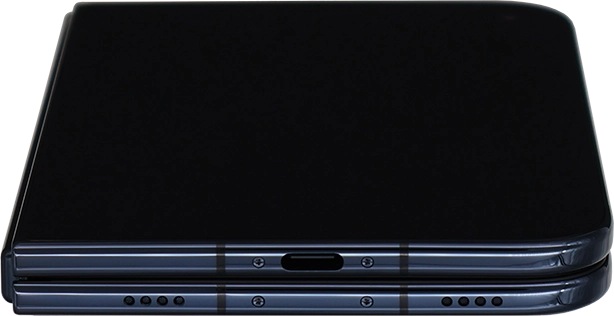
Connect the charger to the socket and to a wall socket.
Step 1 of 3

Connect the charger to the socket and to a wall socket.

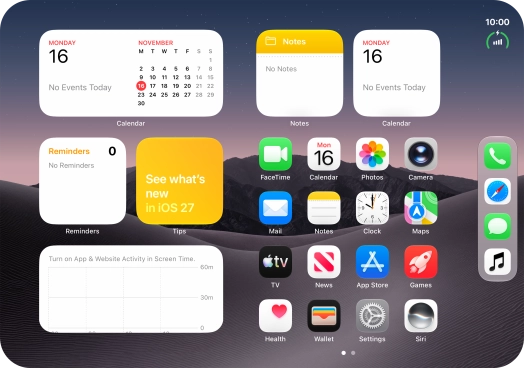
When the battery charging icon is displayed, charging is in progress.
Step 2 of 3

When the battery charging icon is displayed, charging is in progress.

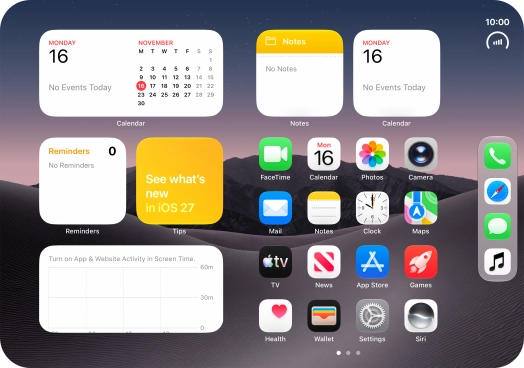
When the phone is turned on, you can always see the battery power level. The more the bar above the signal strength is filled in, the more remaining battery power.
Step 3 of 3

When the phone is turned on, you can always see the battery power level. The more the bar above the signal strength is filled in, the more remaining battery power.

Get information on...

Or choose...

Show more