




Help
Device guides
Apple
iPhone Duo

iPhone Duo

f-7d421a93-ccff-45d2-be78-bf5fd60a0d8a
f-8c3fda19-43c6-4505-a1ac-8011cd5b31f6
f-f1dec2bb-f661-4e45-8aca-dadf88c6d073
f-9d6638b7-f65f-42ec-8fb4-7e87c1397718
f-6e073410-12a4-4b6b-a345-ed93ec9c358b
f-1e1a8456-948a-4380-84d7-f785826a37a9
f-e73a41ff-ec10-49b6-aca9-dde61822f7d9
f-ee82dc6e-c72e-41eb-9846-382dbab57477
  • Device home
  • Getting started
  • Basic functions
  • Calls, contacts, messaging
  • Connectivity
  • Specifications
  • Device home
  • Getting started
  • Basic functions
  • Calls, contacts, messaging
  • Connectivity
  • Specifications

Updating phone software

It's recommended that you update your phone with the newest software, as the manufacturer continuously corrects errors. It's a good idea to back up the phone memory first. Before you can update the phone software, you need to set up your phone for internet.
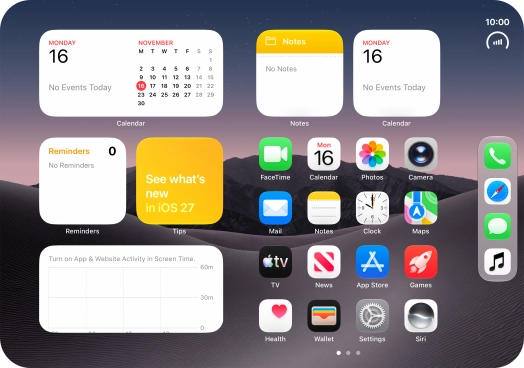
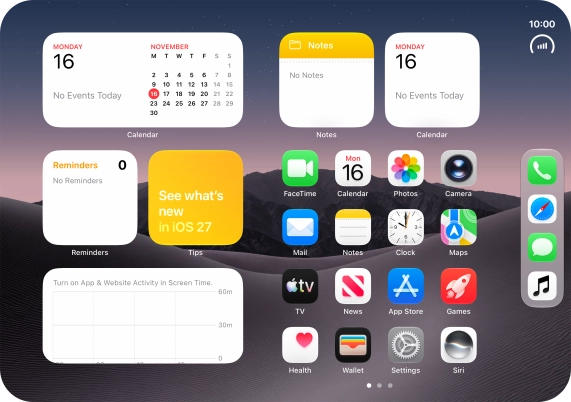
Press Settings.
Press Settings.
Step 1 of 3

Press Settings.

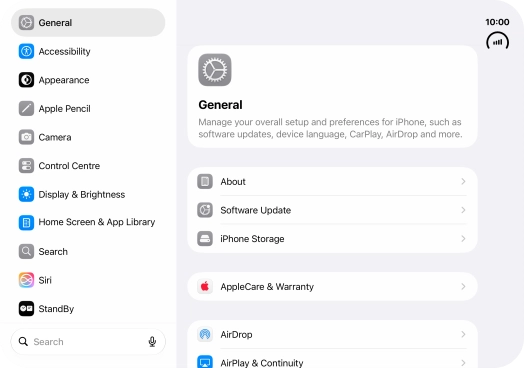
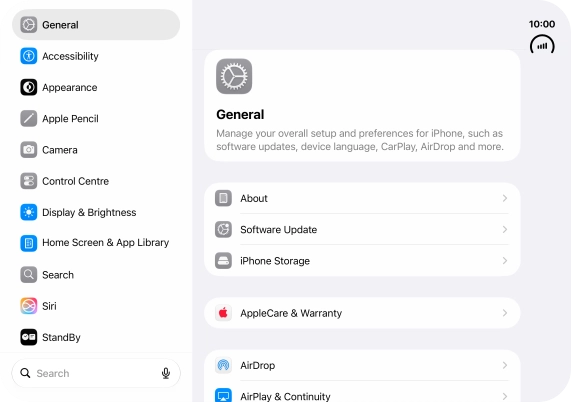
Press General.
Press General.
Step 2 of 3

Press General.

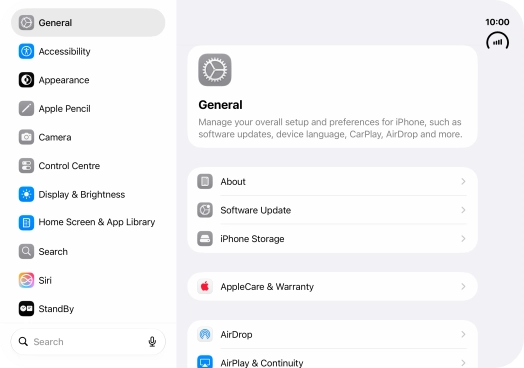
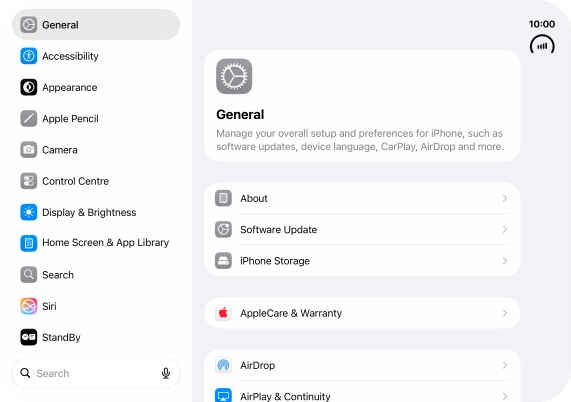
Press Software Update. If a new software version is available, it's displayed. Follow the instructions on the screen to update the phone software.
Step 3 of 3

Press Software Update. If a new software version is available, it's displayed. Follow the instructions on the screen to update the phone software.

Get information on...

Or choose...

Show more